Description
Putting a Quarto website on your own domain using Codeberg and grebedoc.dev.
Introduction
In Part 1, I talked about sharing your Quarto website with the world using Codeberg Pages. But, what if you have your own domain, and you want your website to appear there? My recommendation is to use the service grebedoc.dev. There is some setup involved, but I will take you through that.
One big website or several small ones?
Before we get to details, it is worth making a design decision: do you want one website that grows lots of pieces as your site expands, or do you want several small websites that you can link together?
I went the first way, but eventually came to regret my decision, because the big website had to be re-rendered as a whole every time I made a change anywhere, and that began to take a while. I teach at a university, so my website naturally has one part for each course I teach, as well as one for the program I coordinate. This was originally one Quarto website, with each part in a subfolder. This works perfectly well, but, as I say, was starting to get unwieldy, especially given that I was typically making changes to only one part of it at a time.
Andrew Heiss teaches at Georgia State, and has a very big website on his own domain. I looked at how he had arranged the teaching part of his website, and I saw that he had used a subdomain classes for all the classes he teaches, and had separate subdomains within that for each instance of each class. I didn’t want to go quite that far, but the idea of mapping each small website to a subdomain seemed like a good idea, and I could then have one website per class and re-render only the one I was working on. It took some back and forth with the person behind grebedoc.dev, but I now have that working (for example, this blog is one such small website), and I will talk about how I got it working.
One website at the root of your domain
Let’s suppose you own mydomain.com (adapt the below to your situation) and you have a Quarto website that you would like to appear when somebody visits mydomain.com. This could be (as discussed above) one big website with things in subfolders, or it could be a small one with links to all your other websites and, perhaps, your “About Me” page.
There are two things to consider:
- getting the DNS records1 for your domain to point to the right place (there are about three parts to this)
- setting up a “webhook” in Codeberg to notify the server whenever you push an update to your website.
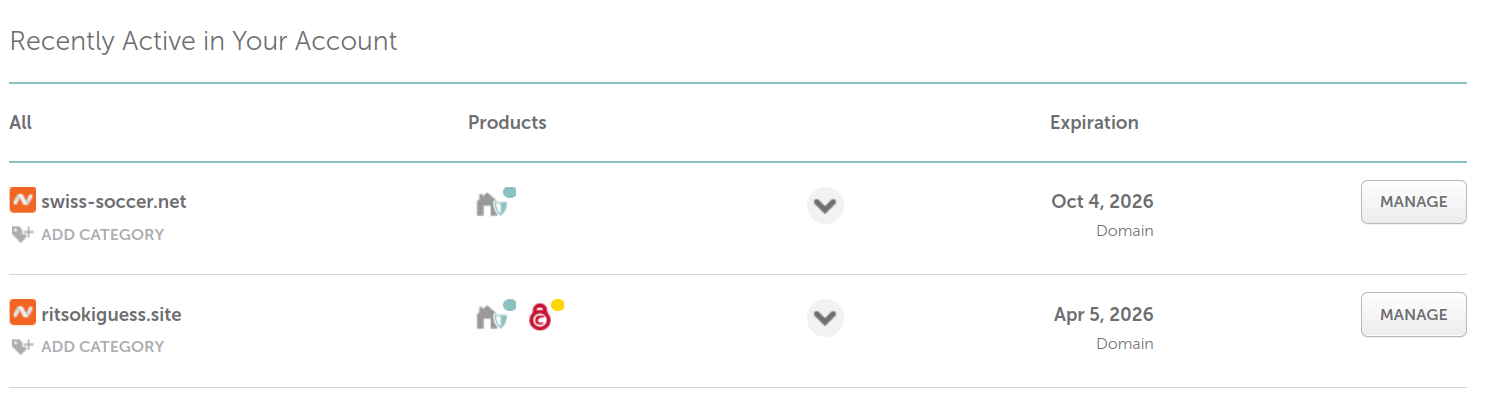
Your domain has a domain registrar (the people you pay money to each year to keep your domain yours). Mine is namecheap.com; godaddy.com is another one. When you log into your domain registrar’s website, you’ll see a list of the domains you have registered with them. I own two domains, so mine looks like this:
When a visitor to your domain types mydomain.com into their web browser, their browser needs to know what to show them in response. This is accomplished by converting the address the user typed into an IP address. grebedoc.dev is going to do the work of making your website visible to the world, so it is Grebedoc’s IP address that you need to provide. There are actually two forms of IP address: IPv4, the four numbers separated by dots that you are probably familiar with, and the newer IPv6, which looks like hex codes separated by colons.
To tell your domain registrar which IP address(es) it should map your domain to, you need to find the DNS settings for your domain. On namecheap.com, I click the Manage button next to the domain name, and then Advanced DNS.
A DNS “record” (probably listed as a row in the table you are looking at) has three parts:
- the Type
- the Host
- the Value
To set the IPv4 address, you need an A record. Find out how you add a new record (mine has a button under the table); there might be a dropdown where you can select the Type of record you want to add. For your A record, set
- Type as
A - Host as
@ - Value as
185.187.152.7
The @ means, loosely, “the root of my website”. The Value given here is, at this writing, the IPv4 address of grebedoc.dev.
Now we set the IPv6 address. This needs an AAAA record:
- Type as
AAAA - Host as
@ - Value as
2a05:b0c4:4:1::3
This last is the IPv6 address of grebedoc.dev (at this writing).
There is a third thing to add, which is how Grebedoc knows that you actually control the domain (otherwise, anyone could put up a website on your domain, or take down the one you put up there). In the Grebedoc docs, this is called Method A. For this, you need:
- Type as
TXT - Host as
_git-pages-repository - Value as
https://codeberg.org/username/reponame.git
The last one is the Git HTTPS clone URL of the Codeberg repo where your rendered website lives. Substitute appropriately for your situation. Be careful to get the right Host; there should be an underscore at the front, and minuses between each word. Here are mine, after I am finished (the Host for the TXT record only shows part of the value):2


Save all of these changes.
Changes to the DNS settings can take a few minutes to propagate. If you want to find out when this has happened, you can use the dig tool. When everything is working, you should see something equivalent to this:
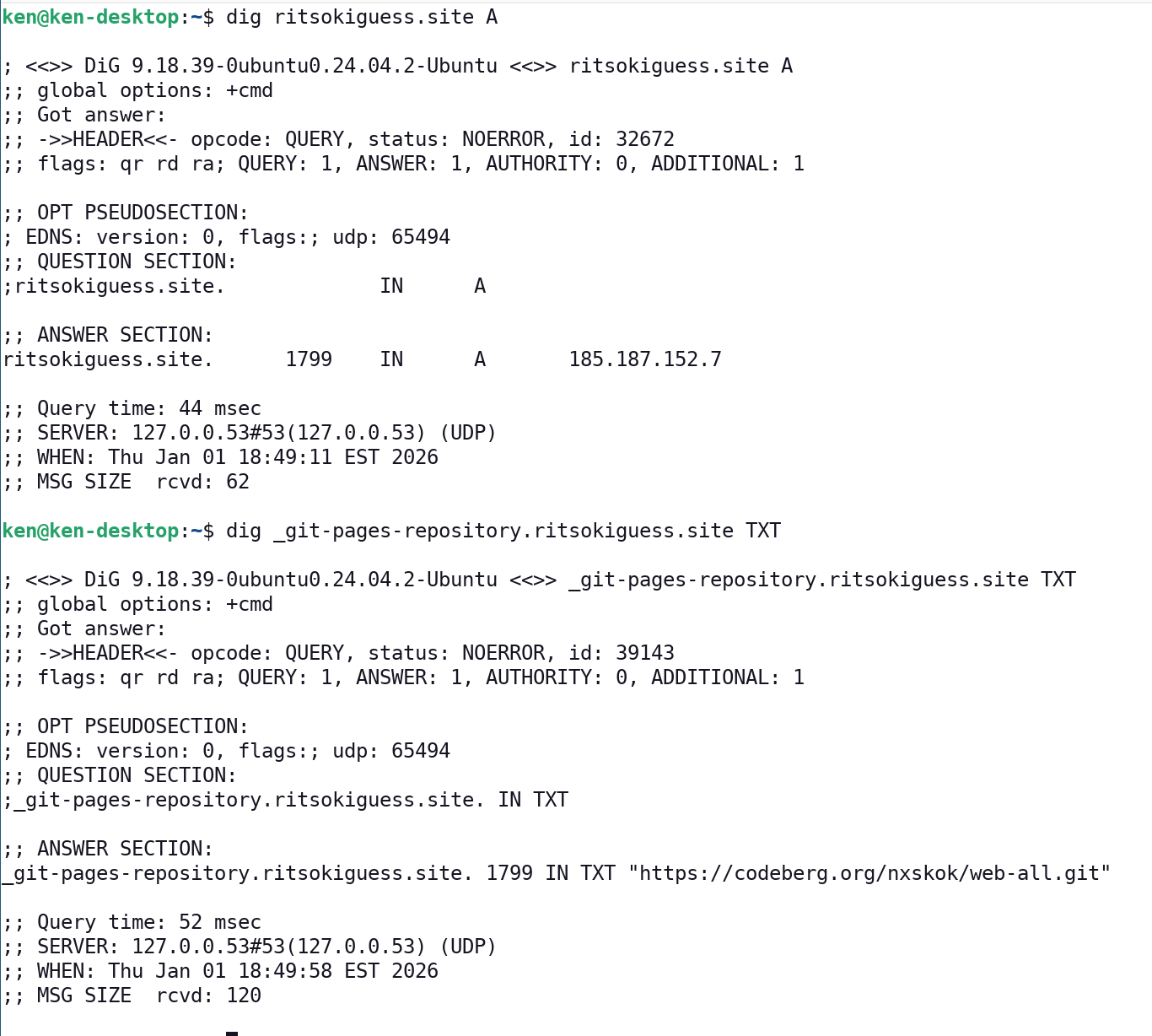
dig requires a domain name, possibly with a subdomain on the front, and the Type of DNS record you want to look up. You should see an ANSWER SECTION in the output. For the A record, this should have your domain name first, and the Grebedoc IP address at the end. For the TXT record, the ANSWER SECTION should have the HTTPS git clone address of your Codeberg repo.
Before the propagation has completed, there will be either no answer section, or it will show something else.
There is one more thing to do, and that is to set things up so that whenever you push your website, the server is notified and the website your users see is updated. This is done by using a Webhook in Codeberg (analogous to a Github Action). Go back to your repo in Codeberg. Click on Settings, and then Webhooks, and then Add Webhook, and then Forgejo. There are two things to change: the Target URL at the top, which should be the http version3 of your domain, as in http://mydomain.com/ with a trailing slash. Go down to Branch filter, and change that to pages (because you are using the pages branch, and when that changes, the server needs to be notified). Click Update webhook.
Now, the next time you push your website, it should appear at your domain. It can take a few minutes for everything to come together. If you need to troubleshoot, make sure the dig output above makes sense, and make sure the webhook is working properly. To do that, go to Settings and Webhooks again. This time, you should see your domain listed among the webhooks. Click on the pencil on the right. At the bottom, you should see one or more Recent Deliveries (one for each push):
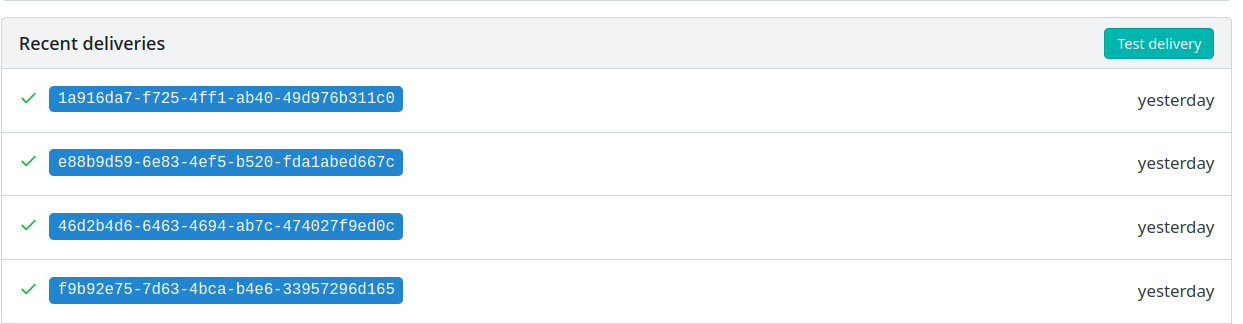
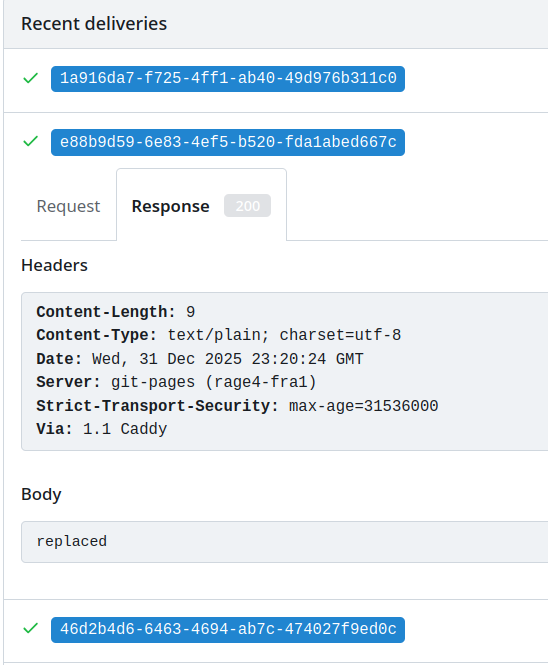
If all went well, you should see a green checkmark next to the most recent of these, and clicking on the blue commit ID will give you more detail. You want the Response code to be a green 200 (“all good”), or at least one of the other 200 codes. I sometimes get a 202 response, which means that it took longer than expected, but it is working. This one is A-OK:
And now, with a little luck, you can visit your domain and see your website!
Using subdomains
I mentioned earlier that you can have one big website or lots of little ones. To do the latter, you map each little website to a subdomain of your domain. For example, the website for the course I teach starting next week is at http://stad29.ritsokiguess.site.
The process for doing this is a lot like the one for setting up a website at the root of your domain:
- setting two DNS records
- setting up a webhook in the Codeberg repository
As before, changes to the DNS records will take time to propagate, so that is the thing to do first. This time, we need a CNAME record and another TXT record:
- Type as
CNAME - Host: the name of your subdomain (only), such as
blog - Value as
grebedoc.dev.
The Value needs to have a dot on the end. Then:
- Type as
TXT - Host as
_git-pages-repositoryfollowed by a dot followed by the name of your subdomain (only), for example_git-pages-repository.blog - Value as
https://codeberg.org/username/reponame.git: the repo containing the website you want to map to the subdomain (in my case,https://codeberg.org/nxskok/blog.git)
Save these. You can use dig to check on progress:
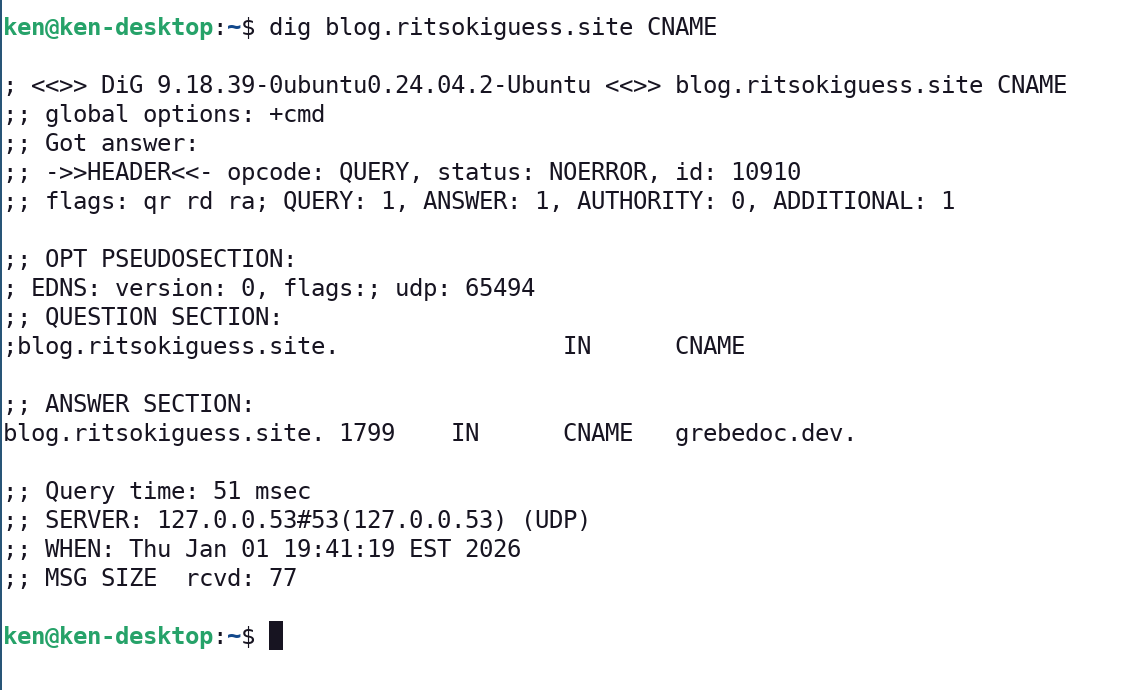
and (noting the input for the second one)
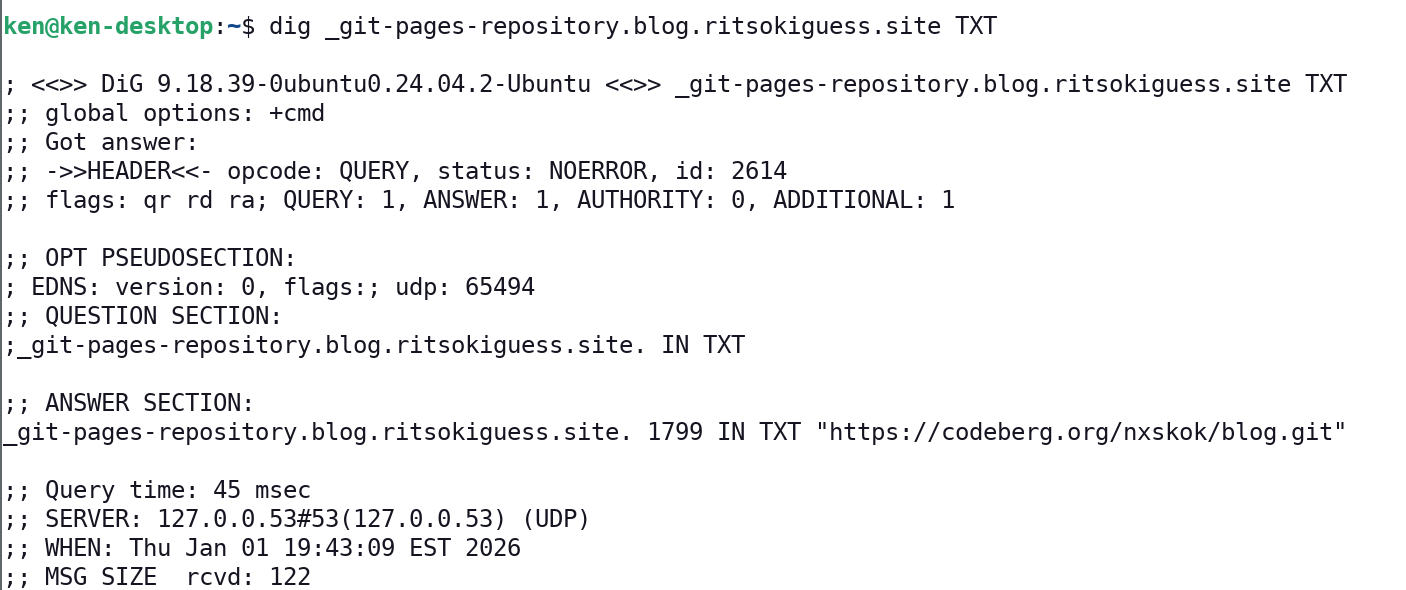
The final step is the webhook. This is the same as before, except that you include the subdomain. This is the one for my blog:
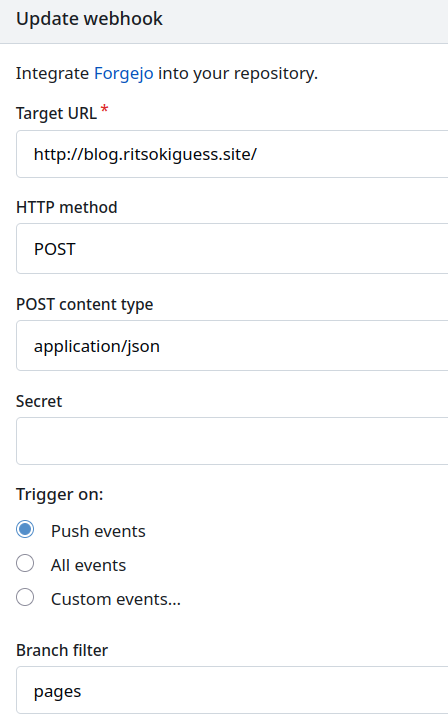
Push to this repo, maybe wait a few minutes, and then check to see what the website at your subdomain looks like.
Reminder
If you have many little websites, the logical way to link them together is to have your “main” site (the one at the root of your domain) have links to all the subdomain sites, and for the subdomain sites to have a link back to the main one. Bear in mind, though, that these are independent sites, so these links should be actual URLs rather than local links.
On your main site, you might do this with a navigation bar, a navbar in Quarto jargon. My main site has a _quarto.yml file that looks like this:
project:
  type: website
  output-dir: .

website:
  title: "Ken's website"
  navbar:
    left:
      - href: index.qmd
        text: Home
      - href: http://programs-courses.ritsokiguess.site/
        text: Programs and courses
      - href: http://stac32.ritsokiguess.site/
        text: STAC32
      - href: http://stac33.ritsokiguess.site/
        text: STAC33
      - href: http://stad29.ritsokiguess.site/
        text: STAD29
      - href: http://datafiles.ritsokiguess.site/
        text: Data files
      - href: http://pasias.ritsokiguess.site/
        text: PASIAS
      - href: http://lecture-notes.ritsokiguess.site/
        text: Lecture notes
      - href: http://blog.ritsokiguess.site/
        text: Blog
      - text: "Quercus"
        href: http://q.utoronto.ca

  sidebar:
    contents: auto

format:
  html:
    theme: cosmo
    css: styles.css
    toc: true
Each of the entries in the navbar is a link to one of the subdomain websites, so the href part of the link is an actual URL. (If you have one big website, these links would be to files in the same folder system, but in my situation that is no longer the case.)
Credits
Photo credit: Bengt Nyman on Wikimedia Commons. It is a Great Crested Grebe; “grebedoc” is Codeberg backwards.)

Thanks to Catherine “Whitequark” for putting grebedoc.dev together.
Footnotes
Don’t worry, I’ll get to what these are and what you need to do with them.↩︎
My repo
web-allis the “front page” to my website, with links to everything else, so it is small.↩︎The grebedoc.dev docs explain why this is, and when you can change it to
https.↩︎